


Most likely the great majority of you has already become familiar with the first review of Online Project Management Tools, so there is no need to explain what an online project management tool is. In case you haven’t, please spend some time to read the post mentioned above, because both reviews will significantly help you to choose the best tool.
In fact at the very beginning we didn’t plan to prepare a couple of reviews dedicated to online project management tools; however after deciding to use such a service to quicken and simplify the working process, we felt the necessity to carry out a thorough research in order to find an even bigger amount of decent online project management tools, ensuring thus the opportunity for everyone to get the tool he/she needs.
Despite the fact that given review should be regarded as a continuation of the first one, there are some distinctive points concerning the way it is written that should be emphasized:
1) In addition to the main characteristic features we decided to mention most important pros and cons (though we tried to be as impartial as possible, you may disagree with us in some cases);
2) At the end of every online project management tool description there is a rating, so you can see what our approximate estimation of a certain service of online project management is. As you understand there are several points we take into consideration while giving a mark:
– functionality;
– usability and user interface;
– advantages and disadvantages;
– customer support service.
3) Emphasizing the way customer support service works. We sent a letter to each customer support service, so you would be able to see how fast we received responses if we did at all.
4) At the very end of this review we are going to mention “Lampdocs’ choice” online project management tool.
As far as the services that we are going to describe are concerned here is the complete list of them (please pay attention that they are listed and described in alphabetical order):
- 1st Manager
- ActionThis
- AjaxWorkspace
- CentralDesktop
- Copper
- DeskAway
- Huddle
- Intervarls
- LightHouse
- LiquidPlanner
- OnStage
- Pelotonics
- PlanHQ
- Planzone
- ProjectManager
- ProjectSpaces
- SamePage
- Staction
- Wrike
1st Manager Project Management Tool
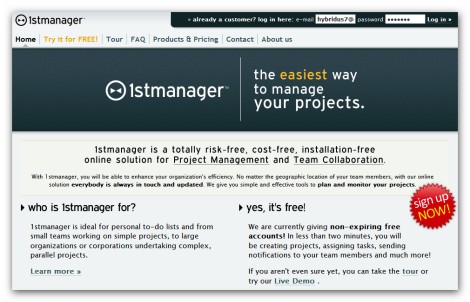
1st Manager represents a decent project management and team collaboration online solution that has an intuitive user interface and is very easy-to-use. 1st Manager can hardly be considered as a multifunctional Online Project Management Tool, because it includes only the basic tools to plan and monitor your projects. Overall given solution produces quite a positive impression having some nice features you may need. But before we go ahead with the features, advantages and disadvantages of this tool, let’s check the screenshots that were made from our account.
Here is the Project Overview page:
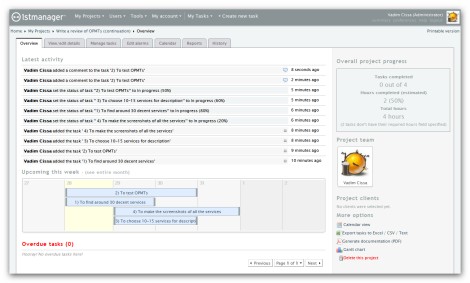
As you understand this is one of the most important pages because it provides all the information about the project, and allows you to do many things: to check all the tasks (current and overdue ones), to check the latest activity, to export the data in .xls, .csv or .txt formats, to generate PDF documentation and etc.
Another important page you will visit a lot is Tasks Page. Here is the way it looks:
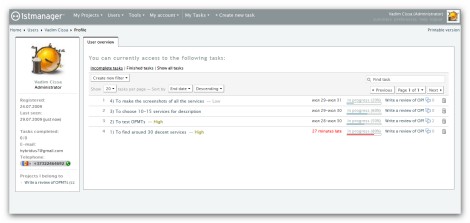
Here can do almost everything you need as far as the tasks are concerned: to check the status of a task, to see if there are some comments on a certain task, to check task priority, to learn more about a task (to check task description) and etc.
The last screenshot we are going to check is the Detailed View of a Task:
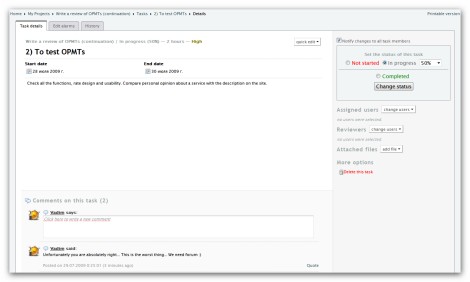
Here you can get or edit all the information about a task, edit alarms, change status, assign users and etc. Moreover as you can see there is an opportunity to comment on tasks.
Now as you have an idea about this task manager solution we can proceed to its main characteristic features:
- Simplicity and intuitiveness
- Multilingual support (currently just 3 languages, 5 more coming soon)
- You can choose the version you like (hosted solution, own installation or even source code option)
- Opportunity to create project templates
- SSL enables browsing
- Exporting all the data in an appropriate format (Excel, PDF, CSV, Text, iCal and etc.) and may others.
Finally let’s see what the most important pros and cons of this Online Project Management Tool are:
+ rich text formatting (tasks and comments)
+ ability to enlarge and decrease the editing window
+ description for tasks
+ commenting on tasks
+ priority for the tasks
+ Gantt chart view
+ a lot of ways to configure alarms (notifications)
+ detailed reports
– no subtasks
– no comments on projects
– no way to edit comments
– no separate panel for discussions
– no separate panel for files
Customer support service
We didn’t get any response
Project Mark: 4 of 5
ActionThis Online Task Management Tool
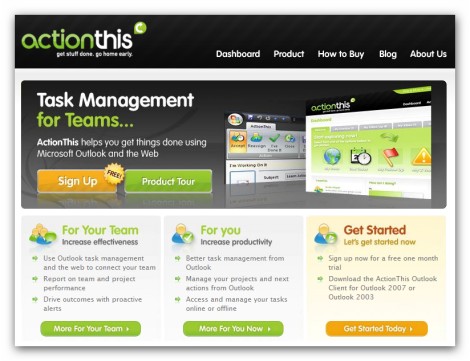
ActionThis is an extremely easy task management tool that helps you increase productivity and eliminate wasted efforts. As the developers emphasize “unlike other project management and collaboration applications, ActionThis focuses on execution – helping you and your team track and manage tasks through to completion”. Thus, though the opponents of using Online Project Management Tools argue that people just spend (waste) extra time with such kind of services, this point of view can hardly be considered as a relevant one as far as ActionThis is concerned. At the same time there are some really important things that are missed, however we will talk about them a little bit later. For now let’s check the screenshots, so you can see the way this tool looks and works.
Here is the Dashboard with Task List:
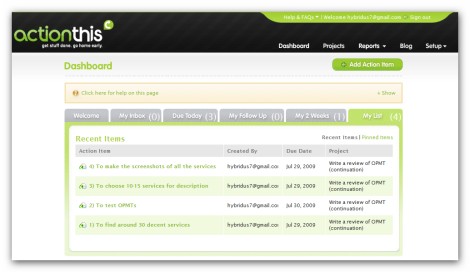
As you can see the Dashboard consists of 6 different panels, so you can check everything you need. Despite the fact that it looks nice, given page can hardly be considered as a really informative one.
Here is the Detailed View of a Task:
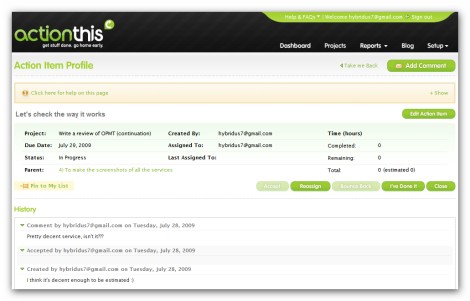
This page provides all the information about the task. Moreover there is an opportunity to leave comments if you want to. Although you can’t see it on the screenshot, at the very bottom of this page the full list of subtasks (if there are any) is displayed.
The last thing we are going to check is Project Overview page:
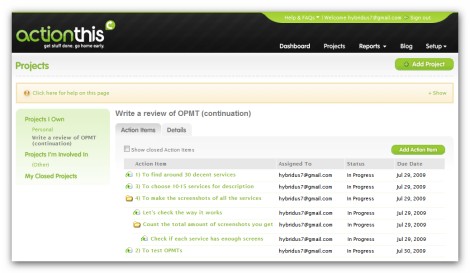
The nice feature of this page consists in the fact that you can see the way tasks are organized (tasks with subtasks and etc.). Unfortunately there is no way to check it anywhere else, even Dashboard does not provide this information. Thus given feature mainly is the most important reason why you will need to check this page quite frequently.
Main characteristic features:
- Simplicity and intuitiveness
- Opportunity to create and manage action items alongside your Outlook email messages
- Unlimited storage for premium members
- Secure SSL encryption
- Opportunity to export ActionThis projects to Excel for further analysis and etc.
Pros and cons:
+ nice looking and easy-to-use tool
+ opportunity to create subtasks (as many as you want)
+ commenting on tasks and subtasks
+ description for project, tasks and subtasks
+ customizable detailed reports
– no text formatting options
– no separate panel for discussions
– no separate panel for files
– no comments on projects
– comments and descriptions for tasks and subtasks are displayed together in History section
– no way to edit comments and descriptions (the only exception is description for projects)
Customer support service
We didn’t get any response.
Project Mark: 3+
AjaxWorkspace online Project Manager
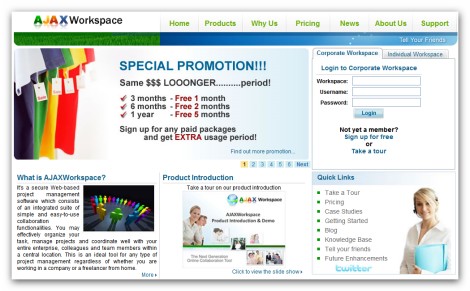
AJAXWorkspace is another online project management solution which consists of an integrated suite of simple and easy-to-use collaboration functionalities. It can be easily used both by a company (a team) and by a freelancer from home. Given service produces quite a decent impression having almost everything you may need as far as functionality is concerned; however, as you understand, nice functionality doesn’t mean nice tool because there are other important points that has to be taken into consideration as well. We will talk about them in a while.
Now let’s take a look at the screenshots, so you have an idea about AjaxWorkspace. Here is the Dashboard:
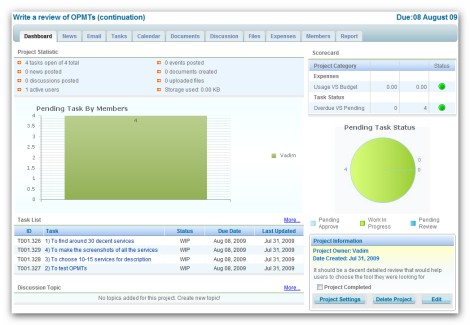
The great feature of this page consists in the fact that it provides all the information regarding particular project: task list, discussions, project settings, project expenses, project statistic and etс. Unfortunately there is no latest activity section, so you can’t check at once what happened since your last login.
Next screenshot we are going to check is Task View with Comments:
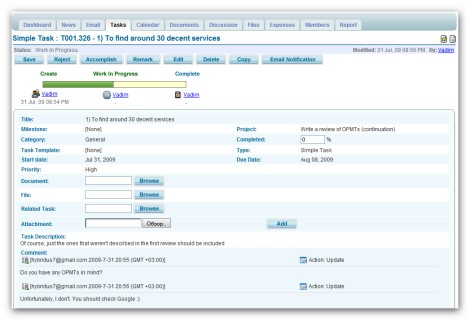
In fact this page provides comprehensive data about a task (task description, comments, task status, task priority, project, milestone and etc.), so you can hardly want something to be added here.
The last page to be reviewed is Discussions Page:
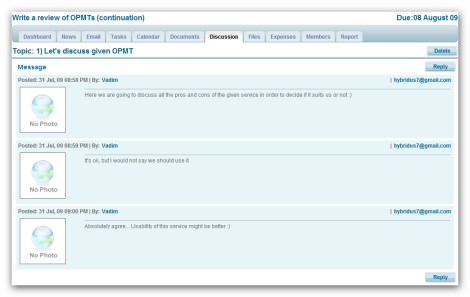
Though it looks pretty decent, to my mind it’s too simple because you don’t even have an opportunity to edit or delete a post. So if you would like to delete something, you need to delete whole topic.
Main characteristic features:
- Opportunity for the workspace to have own domain name, logo and own email notification services
- SSL encryption
- Notepad feature (opportunity to add different ideas and reminders)
- Opportunity to publish news & headlines among your project or organization
- A lot of packages to choose from: individual, corporate, enterprise (managed and self-managed) and etc.
Pros and cons:
+ ability to create documents
+ commenting on tasks and created documents
+ detailed reports
+ Calendar panel
+ separate panel for discussions
+ separate panel for files
+ description for tasks and projects
+ task priority
– interface can hardly be regarded as an attractive one
– no subtasks
– no way to edit and delete comments
– no text formatting options (except documents)
– no comments on projects
Customer support service
Believe or not we didn’t receive the response from customer support service at all.
Project Mark: 4
CentralDesktop Project Management Tool
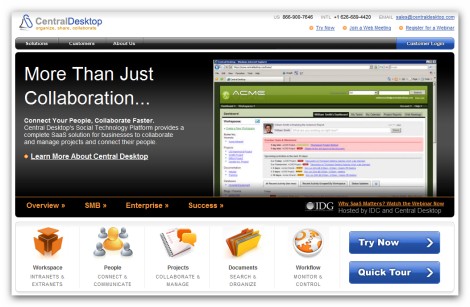
CentralDesktop represents a very successful solution for businesses to collaborate, manage projects and connect their people. It has very decent, but not excessive, functionality; of course some of the users may want something to be added, but for the great majority it will be more than enough. I recommend you to take a closer look at this tool because it seems to be one of the best solutions described in this review. For now let’s check the screenshots, so you can see the way it looks.
Here is Project Home page which provides project overview:
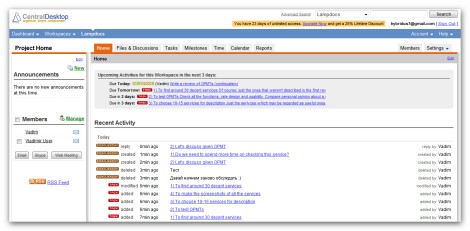
Though at the first sight this page may seem to be pretty simple and not as substantial as it could be, it has the most important data concerning the project: recent activity, overdue tasks and milestones, opportunity to manage the member involved in the project and etc.
Another important page that has to be mentioned is Task page:
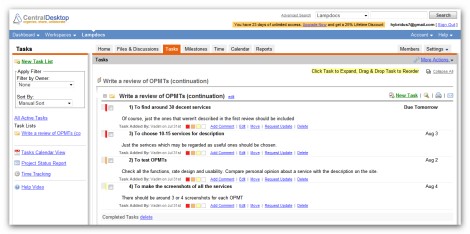
This page is organized really well – it includes absolutely everything you need regarding the tasks: priority, detailed view, opportunity to add comments, opportunity to move tasks, filtering tasks, tasks Calendar view and etc.
The last thing we are going to check is Discussion Page:
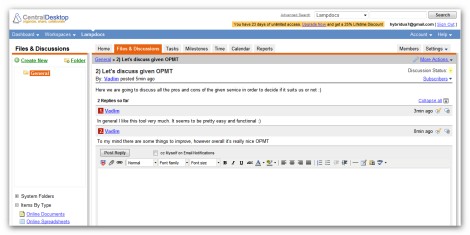
Despite the fact that it looks simple, it has all the functionality you need (rich text formatting, opportunity to edit and delete comments, collapsing and expanding comments and etc.). The only thing I would add is the opportunity to use avatars and add smiles.
Main characteristic features:
- Web Meetings
- Audio conferencing
- Custom domain and branding
- SSL 256bit encryption
- API access and etc.
Pros and cons:
+ descriptions for projects and tasks
+ separate panel for discussions (this panel is used for files as well)
+ simple and detailed view for files and discussions
+ rich text formatting
+ commenting on tasks and files
+ opportunity to edit and delete comments
+ Calendar panel
+ detailed reports
+ ability to create documents and spreadsheets
+ priority for tasks
– although the interface is decent enough it might be better
– no subtasks (though some may consider task lists as replacement)
– no Gantt chart view for tasks
Customer support service
The response from the customer support service was received less than in 24 hours – great result.
Project Mark: 5-
Copper online task management tool
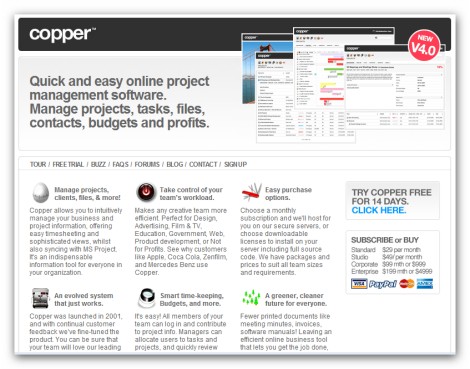
Copper is a decent online project management solution that has a powerful and nice-looking interface designed to reduce time spent finding information, so your team can get back to doing more work and less admin. It should be mentioned that Copper is really easy-to-use tool, so you can start working immediately without the necessity to learn how it works. It has pretty decent functionality which differs significantly depending on the package you choose (there are four of them).
Now it’s time to look at the screenshots of the main Copper modules. The first one we are going to check is Projects Module:
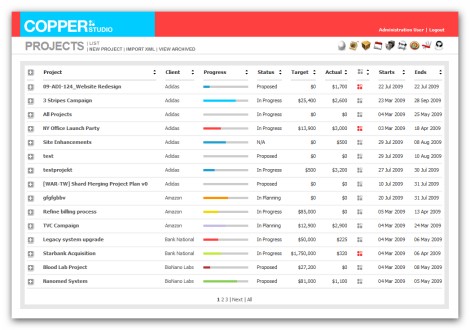
It looks simple enough, but informative at the same time. Nice thing about this module is the opportunity to expand and collapse a project in order to check the tasks included in it. When you expand a project all the tasks are displayed with the most important data (priority, progress, starting and ending date, and etc.).
Next and the last page to be discussed is Task Overview page:
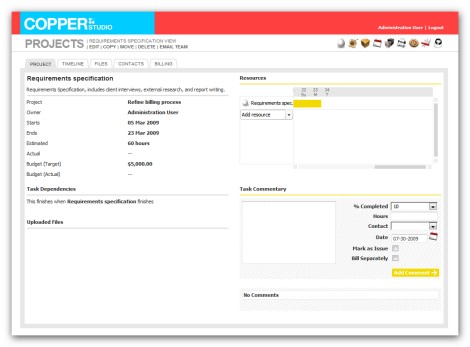
As you can see this page consists of several segments – each of them includes important data about the task (general task info, recourses, comments, unloaded files). Such a structure significantly simplifies the working process and saves time.
The main reason why in this certain case we got just two screenshots is that almost all the modules have very similar structure, so there is no need to discuss them in detail. It will be much better for you to try a demo account and check this tool in action.
Main characteristic features:
- Very simple and easy-to-use tool
- Nightly backups
- SSL 128bit encryption
- Four different packages: standard, studio, corporate and enterprise.
- Great list of current customers and etc.
Pros and cons:
+ commenting on tasks
+ opportunity to edit and delete comments
+ priority and progress (for projects and tasks)
+ description for projects and tasks
+ task dependencies
+ opportunity to colorize projects
+ Gantt chart view
+ Calendar panel
+ separate panel for files
+ opportunity to create subtasks (starting from Studio package)
– poor text formatting options (using tags)
– no separate panel for discussions
– no comments on projects
Customer support service
We didn’t get any response at all.
Project Mark: 4
Hi
A really informative article, your readers may also find my software http://www.task-mate.com useful.
If you get chance feel free to review us, it would be great to see what you think our pro’s and con’s are.
Thanks
Andy
Just tried to test the features but was unable to do that: none of my browsers allowed me to add a new task. Do you have any problems?
From our logs it seems that it’s because your browser is configured to Russian and our localisation system is struggling to read your dates.
We will be deploying an update tonight that will fix the issue permanently, in the meantime if you set primary language in your web browser to english-us (en-us) then it should all function correctly.
Thanks
Andrew Stewart
Hi
Just to let you know that I’ve deployed an update that now resolves all the problems you where coming accross earlier.
Thanks
Andy
Andy, though you want to “keep things as simple as possible”, your tool seems to be too simple :( IMHO, you need to add some functionality – at least discussions panel, subtasks and commenting on tasks.
Hi Vadim,
You can comment on tasks, select a task and the comments are on the right handside.
Sub tasks and discussions are both very good ideas(I’ll look into this for a future release).
Thanks
Andy
Sorry for comments :)
If you add some really important features, Task|mate may become pretty competitive tool.
How do i taste it .
I am surprised to see a list of online task management tools without Agilezen.